> For the complete documentation index, see [llms.txt](https://docs.k2geospatial.com/llms.txt). Markdown versions of documentation pages are available by appending `.md` to page URLs; this page is available as [Markdown](https://docs.k2geospatial.com/en2/applications-user/jmap-ng-user-guide/i-wish-to.../display-element-information/tooltips.md).
# Tooltips
Some map elements will display a tooltip when you touch them or when you click on them. The tooltip contains information on the element's attributes, and it can include text, hyperlinks to open documents or videos in their native applications, photos, etc.
Tooltips also provide access to tools for editing items (if the layer is editable and you have the editing permissions) and to information reports (if the layer has reports configured).
Tooltips are displayed temporarily for one element at a time.
To display a tooltip:
1. Click on an element whose tooltip you wish to display. The tooltip automatically appears.
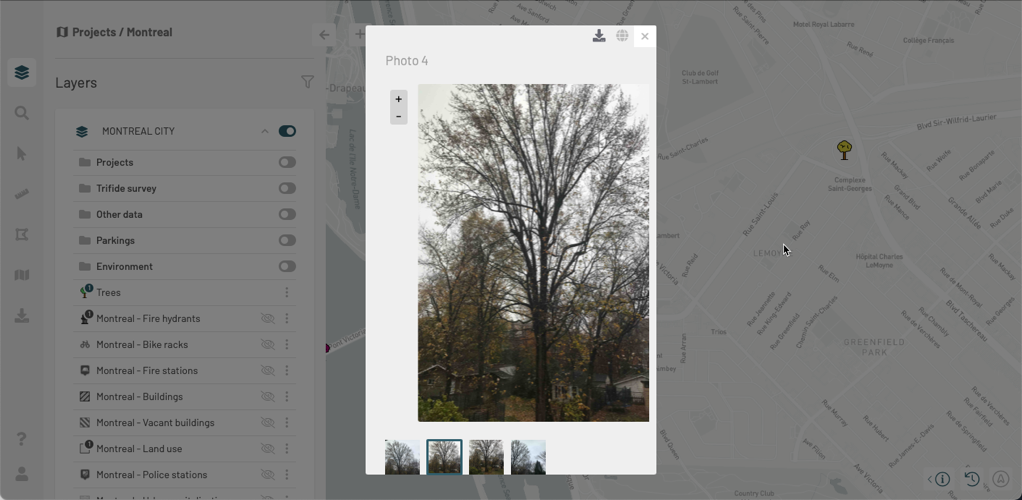
2. Click on a photo to enlarge it and to display its title and comments.
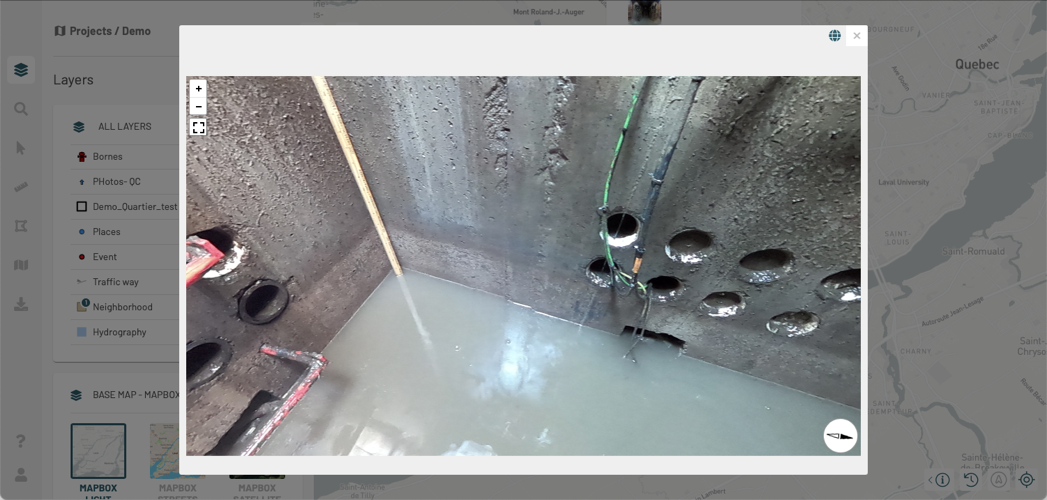
3. If the photo is a 360-degree photo, the viewer opens automatically in panoramic mode.
4. Use the  and  buttons to navigate the photo or to view it in full screen.
5. Click on to see the photo in standard mode.
6. Click on to see the photo in panoramic mode.
7. Click on to close the 360-degree photo viewer.
8. Click on to download the photo.
9. Click on another photo to enlarge it.
10. In the tooltip, click on to modify the element. The [Editing Data](file:///Users/gorzanco/Library/CloudStorage/GoogleDrive-gorzanco@k2geospatial.com/Disques%20partage%CC%81s/K06-Documentation%20\(technique%20&%20commerciale\)/01%20JMap%20Server/JMap%207%20Kathmandu/NG/Utilisateurs/NG_EN/%7B%7B%20site.baseurl%20%7D%7D%7B%25%20link%20edit.md%20%25%7D) section contains the details of this topic.
11. In the tooltip, click on to open the feature information report. This icon only appears in the tooltip of layers that have reports of information configured. The [Information Reports](file:///Users/gorzanco/Library/CloudStorage/GoogleDrive-gorzanco@k2geospatial.com/Disques%20partage%CC%81s/K06-Documentation%20\(technique%20&%20commerciale\)/01%20JMap%20Server/JMap%207%20Kathmandu/NG/Utilisateurs/NG_EN/%7B%7Bsite.baseurl%7D%7D%7B%25%20link%20rapports.md%25%7D) section provides details on the subject.
12. Click on to close the tooltip or click on another map object to open its tooltip.

 to view it in full screen.
5. Click on
to view it in full screen.
5. Click on  to see the photo in standard mode.
 to see the photo in panoramic mode.
7. Click on
to see the photo in panoramic mode.
7. Click on  to close the 360-degree photo viewer.
8. Click on
to close the 360-degree photo viewer.
8. Click on  to download the photo.
9. Click on another photo to enlarge it.
10. In the tooltip, click on
to download the photo.
9. Click on another photo to enlarge it.
10. In the tooltip, click on  to modify the element. The [Editing Data](file:///Users/gorzanco/Library/CloudStorage/GoogleDrive-gorzanco@k2geospatial.com/Disques%20partage%CC%81s/K06-Documentation%20\(technique%20&%20commerciale\)/01%20JMap%20Server/JMap%207%20Kathmandu/NG/Utilisateurs/NG_EN/%7B%7B%20site.baseurl%20%7D%7D%7B%25%20link%20edit.md%20%25%7D) section contains the details of this topic.
11. In the tooltip, click on
to modify the element. The [Editing Data](file:///Users/gorzanco/Library/CloudStorage/GoogleDrive-gorzanco@k2geospatial.com/Disques%20partage%CC%81s/K06-Documentation%20\(technique%20&%20commerciale\)/01%20JMap%20Server/JMap%207%20Kathmandu/NG/Utilisateurs/NG_EN/%7B%7B%20site.baseurl%20%7D%7D%7B%25%20link%20edit.md%20%25%7D) section contains the details of this topic.
11. In the tooltip, click on  to open the feature information report. This icon only appears in the tooltip of layers that have reports of information configured. The [Information Reports](file:///Users/gorzanco/Library/CloudStorage/GoogleDrive-gorzanco@k2geospatial.com/Disques%20partage%CC%81s/K06-Documentation%20\(technique%20&%20commerciale\)/01%20JMap%20Server/JMap%207%20Kathmandu/NG/Utilisateurs/NG_EN/%7B%7Bsite.baseurl%7D%7D%7B%25%20link%20rapports.md%25%7D) section provides details on the subject.
12. Click on
to open the feature information report. This icon only appears in the tooltip of layers that have reports of information configured. The [Information Reports](file:///Users/gorzanco/Library/CloudStorage/GoogleDrive-gorzanco@k2geospatial.com/Disques%20partage%CC%81s/K06-Documentation%20\(technique%20&%20commerciale\)/01%20JMap%20Server/JMap%207%20Kathmandu/NG/Utilisateurs/NG_EN/%7B%7Bsite.baseurl%7D%7D%7B%25%20link%20rapports.md%25%7D) section provides details on the subject.
12. Click on  to close the tooltip or click on another map object to open its tooltip.